 Pounce
 Browse the docs
Pounce Docs
From your first search
to your next flip.
Set up your searches, let Pounce handle the first conversation, and keep track of what you buy and sell. Here’s how it all works.
01Just installed?
Connect an account, choose your alerts, and get your first search running.
02Ready to do more?
Set your offer targets, follow seller replies, and turn finds into flips.
Screenshots show the current interface with fictional listings, conversations, sales, and community members. Example totals are calculated from the amounts shown. They are not customer earnings. Click any screenshot to open it at full resolution.
What Pounce does
Pounce runs on your Windows computer and searches Facebook Marketplace through the accounts you connect. It checks listings against your search rules, looks up pricing when the search needs it, and sends you the ones that qualify.
You can also have Pounce send an opening message or make an offer and negotiate. When a seller accepts, makes a workable counter, or needs an answer from you, you take over the conversation. After buying, you can prepare a relist and record the purchase and sale in Insights.
What you need
- A Windows 10 or 11 computer with a reliable internet connection.
- An active Pounce subscription and the license key provided through Whop.
- A Facebook account that can use Marketplace. Log in yourself and complete any Facebook verification requests.
- A US ZIP code or UK postcode for the location field, plus a pickup radius in miles.
- At least one notification channel you’ll actually see: Discord, Telegram, or Windows notifications.
You don’t need to install Python, edit configuration files, or bring an AI API key. Setup is in the dashboard.
Install and activate
- Download the current Pounce installer from your Whop access page and run it.
- Open Pounce. Enter your license key when asked and finish activation.
- Use the setup checklist on the Dashboard to connect notifications, log in to Facebook, set your location, and add a search.
For updates, use Pounce’s update prompt or the current installer from your access page. Updates are designed to keep your settings and saved sessions. Don’t uninstall or clear your data as a first troubleshooting step.
If activation fails, check that you copied the complete key and that the subscription is active. Contact support and open a ticket using Get help at the top of this page. Don’t post your license key in a public channel.
Get your first search running
- Set up alerts. Open Settings, connect your notification channel, and send a test. See notification setup.
- Set your location. Enter Home Location and Search Radius in Settings.
- Connect Facebook. Open Accounts, add an account, and use its login button. Finish signing in in the browser Pounce opens, then set the Marketplace location in each account’s Facebook browser.
- Add one search. In Searches, choose + Add Search. A category search is a useful starting point for a supported market. Assign it to your connected account, set your buying targets, and save.
- Check your schedule. Quiet Hours must cover at least eight hours a day. If you turn on messaging, set Messaging Hours, radius, and a daily limit as well.
- Start Monitor. Watch the account status and the search’s History. Give it time to finish a cycle before changing several settings at once.
Plans and search limits
| Plan | Monthly price | Search slots | Coverage |
|---|---|---|---|
| Standard | $69 | 20 | Non-vehicle categories and custom searches. |
| Pro | $149 | 30 | Everything in Standard, plus cars, trucks, powersports, and watches. |
Both plans include AI verification, alerts, auto-message, lowballing and negotiation, relisting, and Insights. Pro adds the extra search capacity and specialist markets.
Each enabled search/account pairing uses one slot. One search assigned to three accounts uses three. Five searches assigned to two accounts each use ten. An enabled search with no account assigned still reserves one slot, but it will not scan until you assign an account. Disabled searches do not use slots.
The counter in Searches shows your current usage. If you reach the limit, disable a search you aren’t using or remove an extra account assignment before adding more. A plan-locked vehicle or watch search needs Pro; changing its name does not change that requirement.
Choose the right search
Category Search
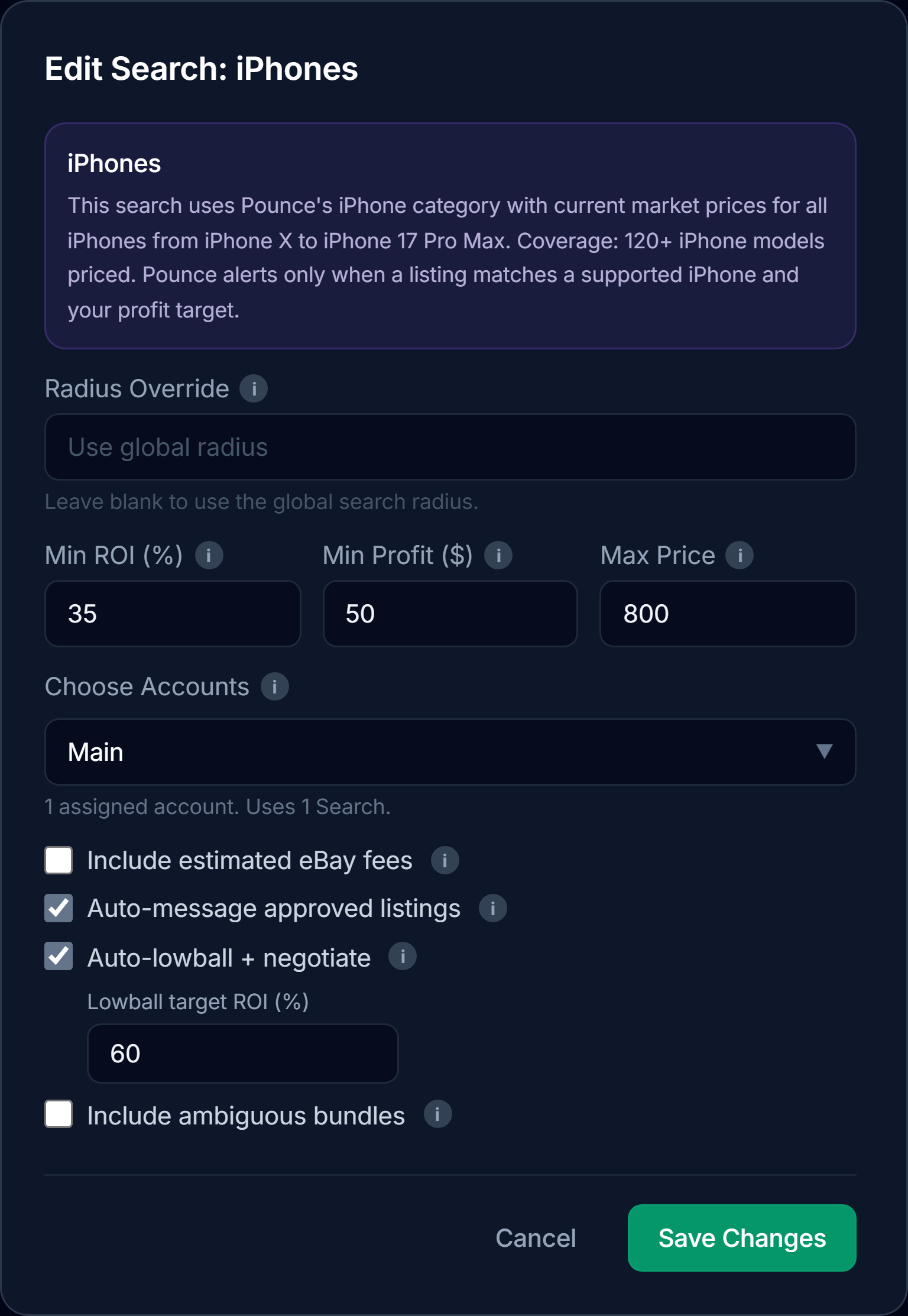
Scan a supported category, such as iPhones or game consoles. Pounce identifies covered items and uses category pricing. You set the buying targets, accounts, and options.
Specific or Custom Search
Use a preset for a particular product, or write your own Marketplace query and rules. Custom searches are useful when you know exactly what you want to buy.
Find one model with Specific Search
Choose + Add Search → Specific Search, open a product group, and search by brand or model. Cameras, lenses, guitars, basses, amps, pedals, pianos/keyboards, golf clubs, and video games have searchable model lists with pages of results. LEGO accepts a set number or name. Cars, powersports, and watches have their own model browsers.
Misc. has ready-made searches for items such as Tesla Wall Connectors, Concept2 rowers, espresso machines, and power tools. Select the items you want, review the rules and buying targets, assign accounts, and save. Each enabled search uses your normal plan allowance.
Finding a model in the browser does not mean it already has a usable price. Auto pricing must still finish its normal checks. Use Custom Search when you want to write your own query and rules.
Auto pricing
Auto uses market pricing to decide whether an asking price meets your ROI and profit targets. Specific queries work best: Steam Deck OLED gives Pounce a much clearer comparison than gaming stuff. Presets and category searches have their own supported pricing sources.
Manual price range
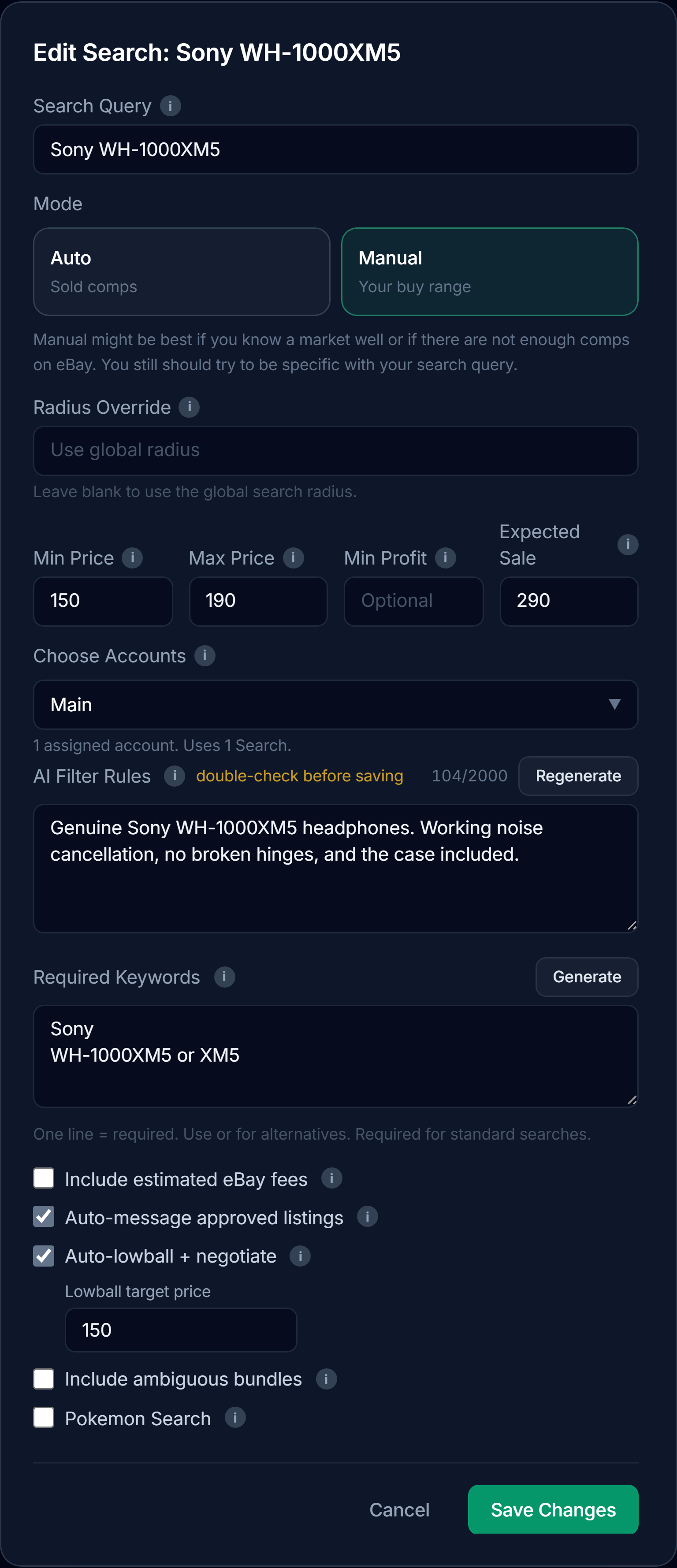
Manual uses the buy range you set. It still checks the listing against your rules, but it does not fetch sold comps for that search. Use it when you know the market or comparable sales are too thin. An optional Expected Sale Price supplies your own resale assumption; it is not a market-verified value.
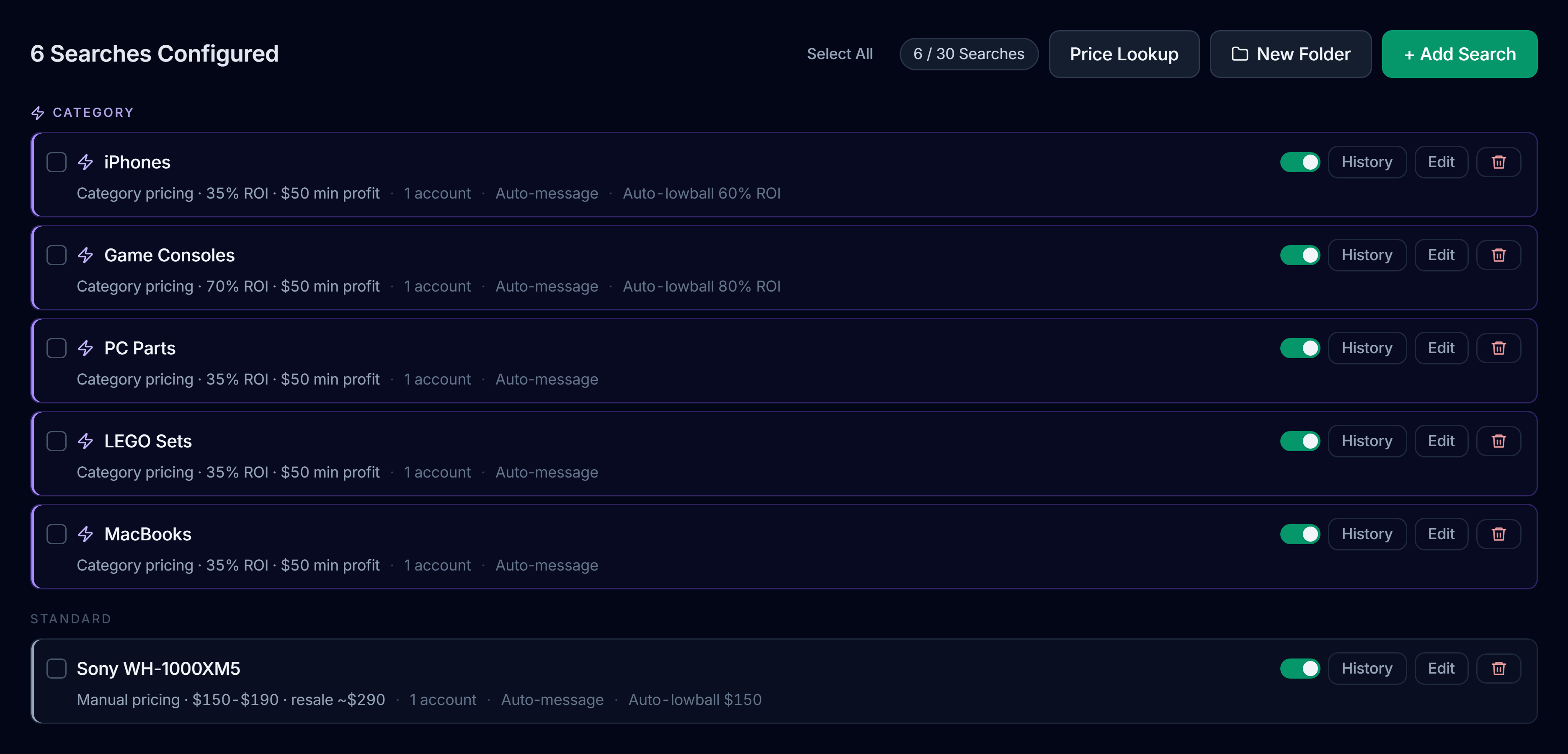
Keep a larger setup organized
Use folders to group related searches. Select rows to move them into a folder or edit shared settings together. Review the selected rows before applying a batch change, especially when they use different pricing modes or accounts.
Categories and Price Lookup
Standard and Pro include iPhones, iPads, MacBooks, Game Consoles, Video Games, PC Parts, sealed Pokémon products, and LEGO Sets, plus Cameras & Lenses, Golf Clubs, Guitars & Basses, Amps & Pedals, and Digital Pianos & Keyboards. The three music categories are separate searches, so you can set different buying targets for each. Pro also includes the vehicle and watch markets below.
A category is not a promise that every model, accessory, variant, or bundle has a usable price. Some catalog models are listed but not yet priced. Check the exact item in Price Lookup; a category with unavailable pricing may be temporarily disabled.
The newest category and Specific Search options depend on your app build; older builds may not show them. If an option is missing, contact support to check build availability.
Open Price Lookup from Searches to check current category coverage for an item. Use the product details you actually have: the model, storage, reference, set number, or other distinguishing information. A broad category name is not enough to price every listing inside it.
Different markets use different sources, including sold-market data and specialist pricing for supported products. Coverage and values can change. Check the current result in the app instead of assuming that a similar-looking product has the same value.
Vehicles and watches
Pro includes Cars & Trucks, supported powersports such as motorcycles, dirt bikes, ATVs, UTVs, personal watercraft, and snowmobiles, plus watches. Use the category or specific-search picker to narrow the make, model, type, brand, or reference where those controls are available.
Vehicle values use supported KBB or J.D. Power coverage, with listing details such as mileage affecting the estimate. Watch pricing depends on the identified model or reference. Missing or ambiguous details can stop Pounce from giving an item a usable value.
Repair tolerance
Vehicle category searches offer four levels: No repairs, Minor repairs only, Minor, moderate & unknown, and All repairs, including major. Pick the level you would actually buy. Allowing repairs does not mean Pounce has inspected the item or priced the work.
Buying targets and search options
| Setting | What it changes |
|---|---|
| Min ROI (%) | The required return relative to the buy price in Auto. A higher target means a lower acceptable buy price. |
| Min Profit | An optional dollar floor. Where applicable, the listing must meet this and the ROI requirement, not one or the other. |
| Min / Max Price | Your asking-price range in Manual, or additional price limits where the search exposes them. Set a realistic minimum to avoid junk priced at a token amount. |
| Expected Sale Price | Your own resale estimate for a Manual search. Use a value you can defend. It can supply profit context, but does not turn Manual into a sold-comp lookup. |
| Radius Override | A different pickup radius for this search. Leave it blank to use the global radius. |
| Choose Accounts | The Facebook accounts that run the search. Every enabled pairing counts toward your plan limit. |
| Include estimated eBay fees | Accounts for estimated selling fees in supported non-vehicle buy targets. It does not cover every cost of a flip. |
| Include ambiguous bundles | Allows fully verified category lots whose whole-bundle value cannot be established. These can show Unknown profit; don’t treat that as a priced deal. |
| Auto-message approved listings | Sends a natural interest or availability opener when the listing and messaging settings allow it. |
| Auto-lowball + negotiate | Makes a price offer on an eligible listing and can handle a limited negotiation. See how targets and handoffs work. |
ROI is measured against the money you spend
For example, a $390 resale estimate and a 50% ROI target allow a $260 buy before any applicable fees or other costs. That is a $130 gross spread. In Insights, the same purchase only becomes recorded profit after you enter a sale and its expenses.
AI rules and Required Keywords
The query gets listings from Marketplace. Required Keywords quickly narrows the titles. AI Filter Rules tell Pounce what the item must actually be. Those are different jobs.
Write rules you would use while reading a listing
For a custom search, use Generate Rules as a starting point, then read and edit the result before saving. Be clear about the exact model, condition, included items, and variants you do or don’t want. Avoid long lists of unrelated exclusions.
Required Keywords are an early filter
Every required line must match the listing title. Use or for alternatives on the same line. A listing filtered out here will not get a full AI review, even if the missing word appears in its description. Generate can create a starting list from your query and must-have rules; check it for terms sellers commonly omit.
Global Exclude Keywords
These apply across your searches and skip titles containing those terms. Keep them narrow, such as case only or financing. A broad word can remove good listings too. If you want to buy repair projects, check that your global exclusions aren’t filtering them out before the vehicle rules can review them. For most users, we recommend not touching these.
When pricing isn’t ready
Auto needs a usable value before it can compare the asking price with your target. New or changed searches may need pricing preparation. Read the status shown for that search and let preparation finish before expecting priced alerts.
Pounce does not treat missing pricing as a free pass. A listing can be deferred or skipped when its value cannot be established. If a specific custom product consistently lacks useful comps, check the query and coverage, or use Manual with a range you know. Manual still uses AI verification; it is not an offline mode.
Price drops and repeat alerts
Pounce remembers listings it has already seen so every scan doesn’t resend the same feed. A later price drop can make a previously seen listing qualify or trigger a price-drop alert. The listing still has to pass the applicable search checks.
A lower price alone is not proof of a better deal. Open the listing and check whether the seller also changed the item, condition, included accessories, or description.
Seller checks are a second opinion
Pounce can check seller information when evaluating a suspicious listing. That helps filter obvious problems, but it cannot authenticate an item, guarantee a seller, or replace seeing the item yourself.
Read the listing and conversation before committing. Be particularly careful with deposits, shipping-only requests on a local-pickup deal, mismatched photos, and prices that only make sense if important details are missing.
Auto-message and your inbox
Turn on Auto-message approved listings in the search editor to have Pounce send an interest or availability opener. Pounce generates the opener for the listing.
Messaging also depends on the account session, Messaging Hours, Auto-message radius, and the account’s daily limit. The alert radius and message radius are separate: you can watch a wider area while only messaging sellers you would drive to.
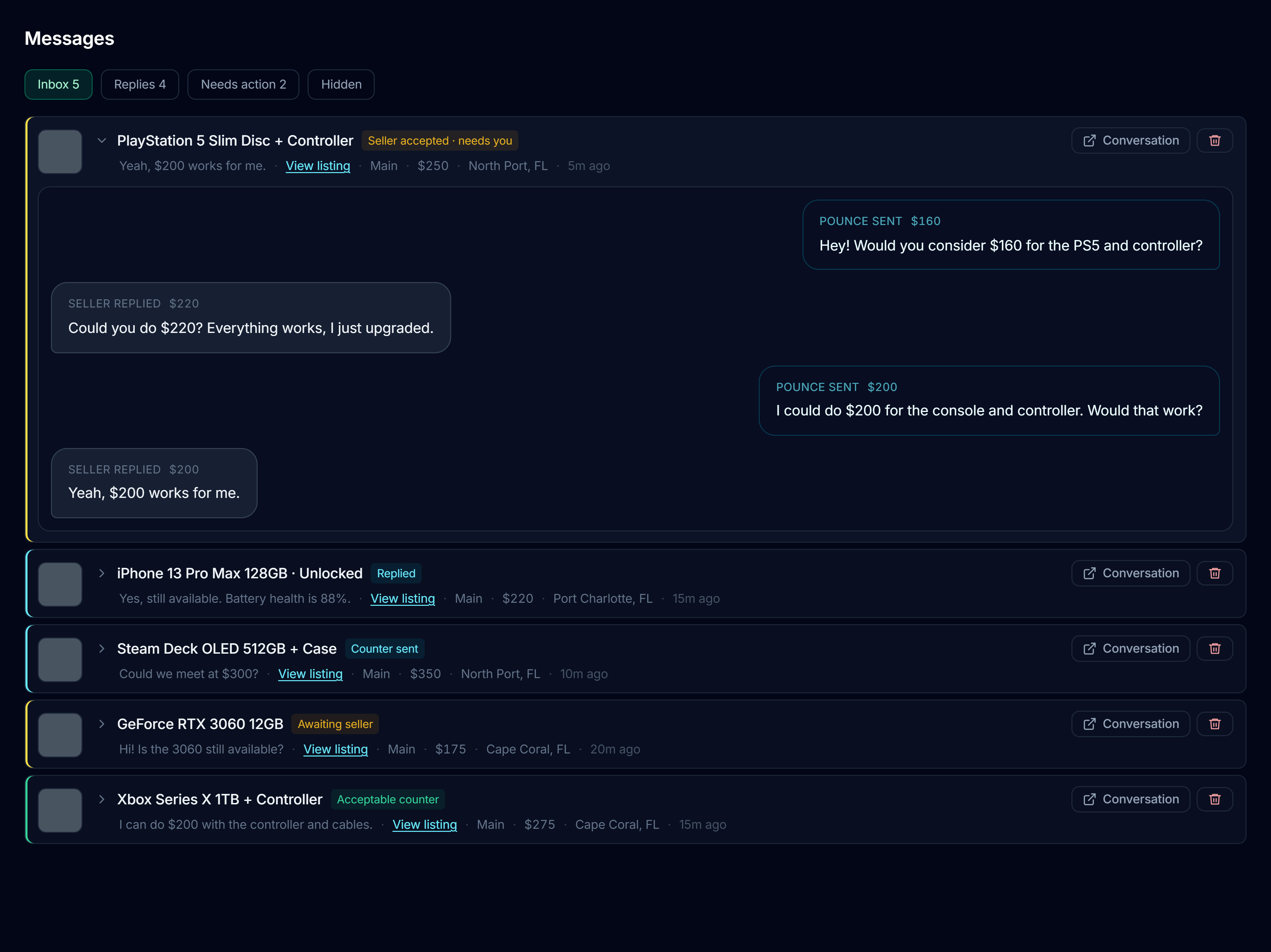
Use the right inbox view
- Inbox: active message threads.
- Replies: threads with a seller reply.
- Needs action: conversations where Pounce needs you to step in.
- Hidden: threads you have hidden from the active inbox.
Click Listing next to Conversation on a message row to see the Marketplace item in your regular browser. Click Conversation to open the thread in that account’s Facebook browser, where you can take over and reply yourself. If the account is finishing a scan, wait for it to finish and try again.
Hiding a thread also stops Pounce from checking it for new replies and continuing automated negotiation. Only hide it when you’re done monitoring that conversation. The saved history remains, and hiding does not reset the listing for another opener.
Messaging controls in Settings
New setups default to 20 new conversations per account per day, shared by Auto-message and Auto-lowball. Check your saved limit in Settings; updating Pounce does not replace a limit you already chose. Replies within an existing negotiation do not use another opener slot.
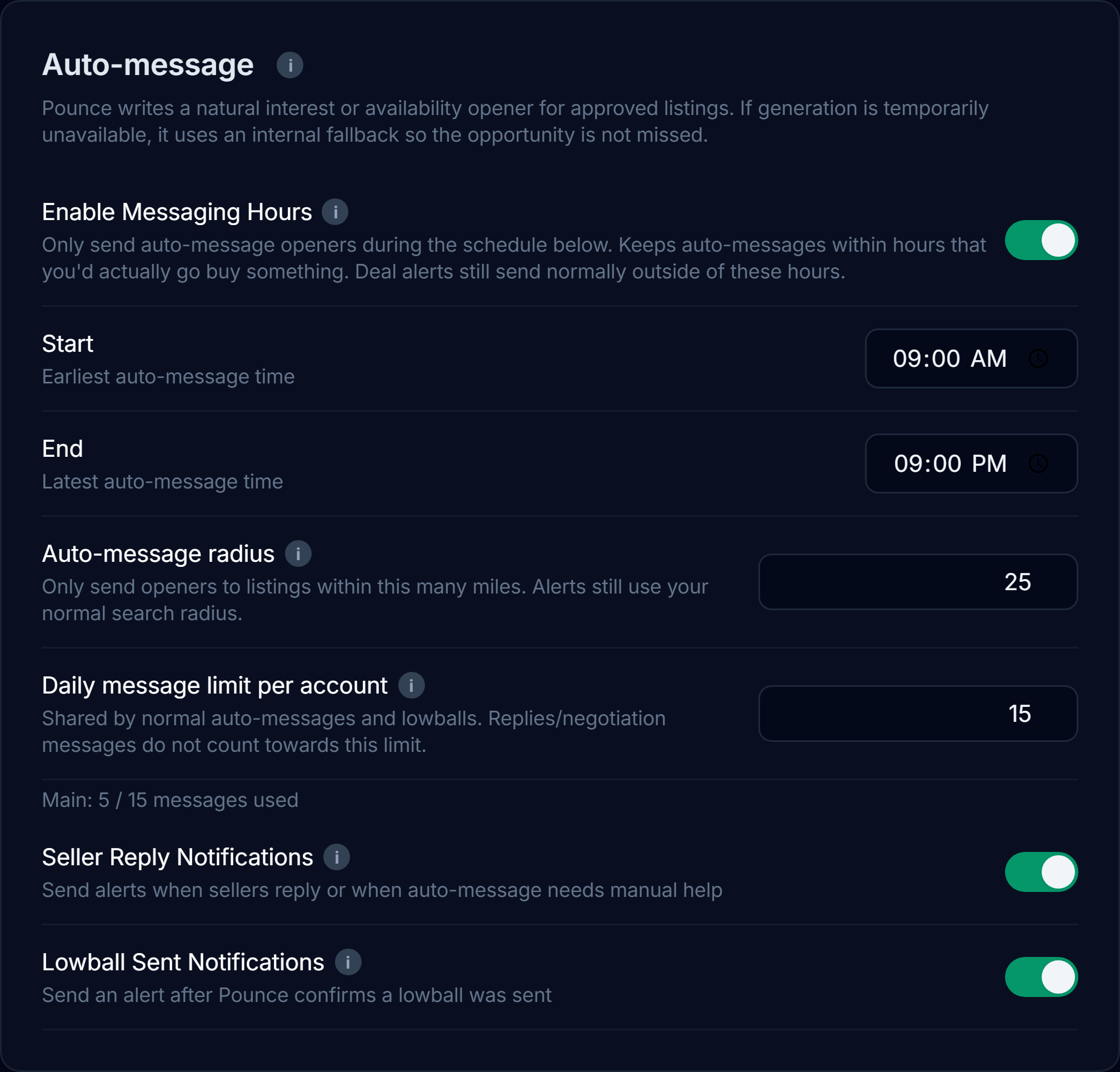
Messaging Hours restrict when new openers are sent. Outside the window, an otherwise qualifying deal can still alert without an opener; it is not a promise to message that seller later. Quiet Hours separately pause scanning.
Seller Reply Notifications controls reply and manual-help alerts. Lowball Sent Notifications controls alerts after a lowball is confirmed sent. These do not replace your normal deal-notification settings.
Lowballing and negotiation
A listing doesn’t always need to be a deal at asking price. Enable Auto-lowball + negotiate to make offers on otherwise-approved listings priced up to 33% above your normal buy target. Pounce can negotiate for up to three replies, then hand the conversation back to you.
Set a separate negotiation limit
In Auto, use Lowball target ROI (%). This sets the maximum price Pounce can negotiate toward, alongside your normal buy target and profit floor. A higher lowball ROI means a lower price ceiling. The opening offer can be lower still, leaving room for a counter.
For example, you may accept normal alerts at 35% ROI but require 60% ROI when Pounce negotiates. The 60% setting is a limit for the negotiation, not just a suggestion for the first message. In Manual, Lowball target price is your maximum negotiated purchase price. It must be positive and no higher than Max Price; it can be below Min Price.
With Auto pricing, offers follow the resale estimate and your ROI budget rather than a fixed discount. An offer can go below half the asking price when your ROI target requires it. Manual-price searches do not use that exception.
What Pounce handles, and where you step in
Pounce reads seller replies and can send price counters within its limits. It stops for an accepted offer, a counter that needs your decision, questions it cannot answer for you, unclear terms, or a conversation that has reached its reply limit. Check Needs action instead of assuming silence means a purchase is arranged.
Normal auto-message and lowballing share the same daily limit; they are not two ways to send duplicate opening messages. Keep your targets realistic and use conservative messaging settings when starting out.
Relist a purchase on Marketplace
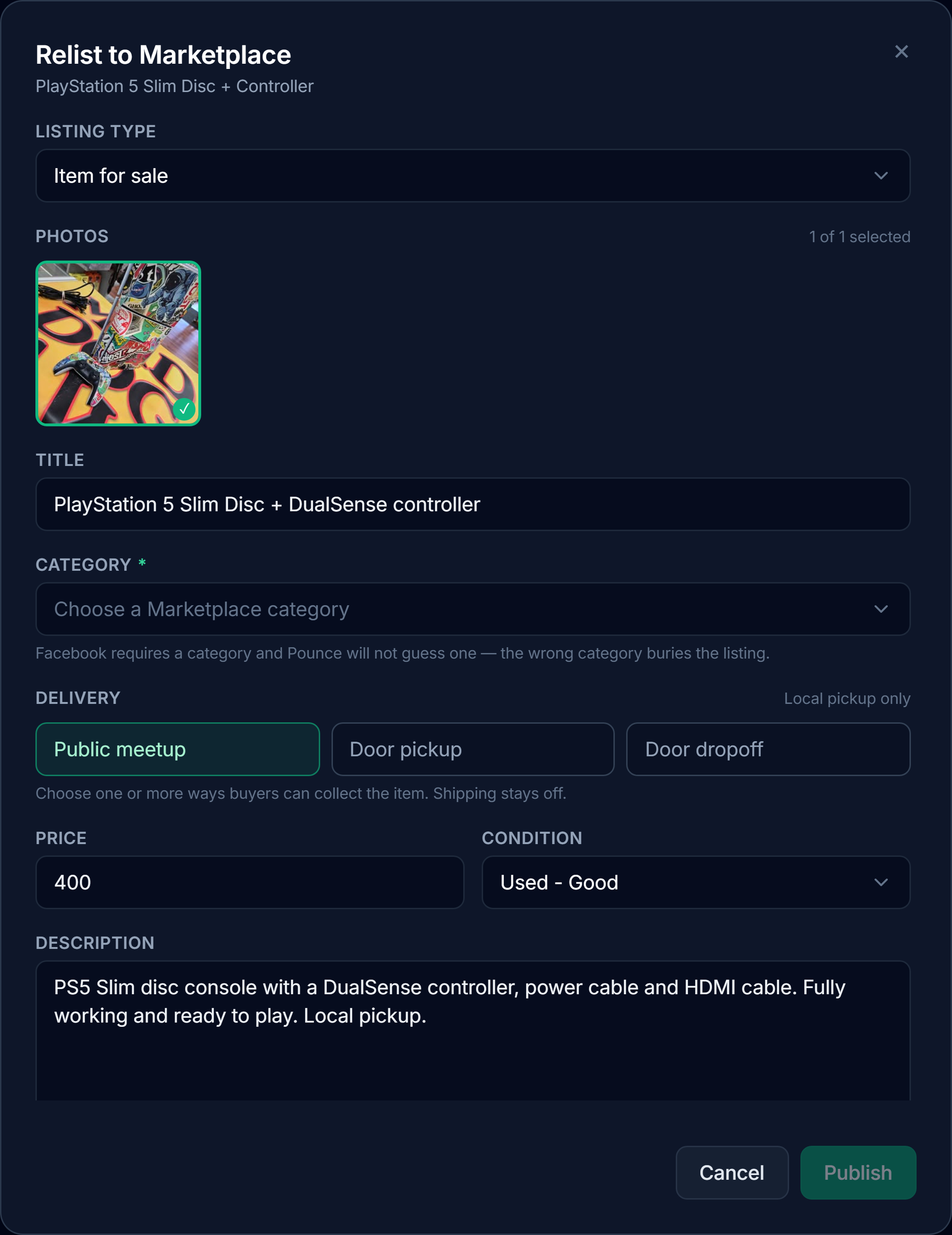
Relisting prepares a new Marketplace listing from a Pounce find. You review the draft before anything is published. It does not mark the item bought or sold in My Flips; record those separately.
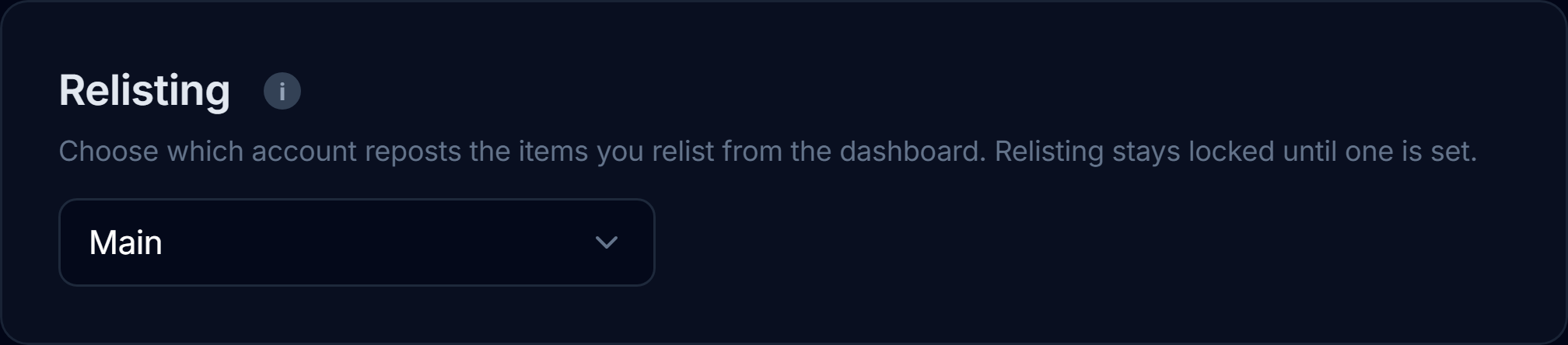
- Choose your selling account. In Settings → Relisting, choose the Listing account. Pounce uses this account to publish, not whichever scanning account found the item.
- Stop the monitor. Relisting and scanning cannot run at the same time. Finish or close an open relist before starting another.
- Open the find. Hover the Dashboard listing and choose Relist. Wait for the draft to load.
- Review everything. Check the title, price, description, condition, photos, and pickup choices. For an item listing, pick a Marketplace category yourself. For a vehicle, fill in the required vehicle details.
- Publish when ready. Confirm that you own the item, the draft is accurate, and you have permission to use the selected photos. Click Publish once and wait for the result.
- Check the result. Open the published listing if a link is available. Restart the monitor yourself when you are done.
If Pounce can’t confirm publication
Do not immediately publish again. Use Open Your listings and check Facebook first. Then choose It posted or It didn’t post in Pounce. This resolves the uncertain result without blindly creating a duplicate.
Cancel closes an unfinished relist. Once publishing has started, wait for the result. Relisting currently uses local pickup; it is not a shipping checkout or a cross-platform inventory sync.
Insights: what you bought and what you made
Insights has three views: Overview, My Flips, and Community. Your own results come from the purchases, sales, and costs you record. An alert with a promising estimate is not a completed flip.
Record a purchase
- Click Add a flip and choose the Pounce find you bought. Search by title if needed.
- Leave the status as Bought. Enter your actual purchase price and purchase date, not necessarily the seller’s asking price.
- Add notes that explain the deal, then choose Save purchase. The item is now inventory in My Flips. If you share the win later, your notes will be public with your win.
Record the sale
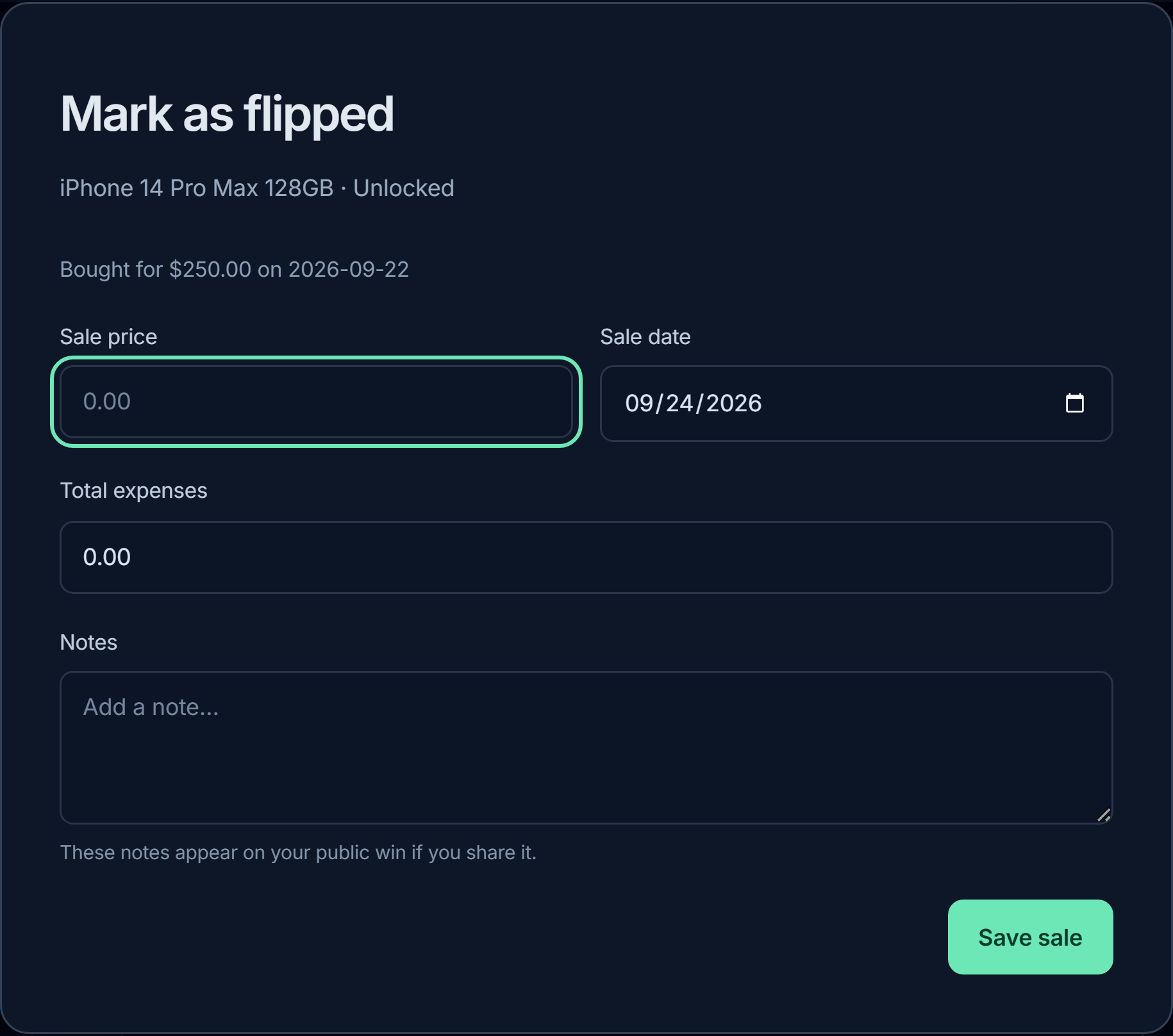
Find the item in My Flips and choose Mark as flipped. Enter the sale price, sale date, and total expenses, then save. Include costs such as platform fees, postage, repairs, or transport in that expense total if you want them reflected in recorded profit. You can also add an already-completed flip directly.
In the demo, the PS5 was bought for $200, sold for $400, and had $40 of expenses: $160 recorded profit. Pounce does the subtraction, but you supply the facts. Costs you leave out are not automatically discovered or deducted.
Read Overview correctly
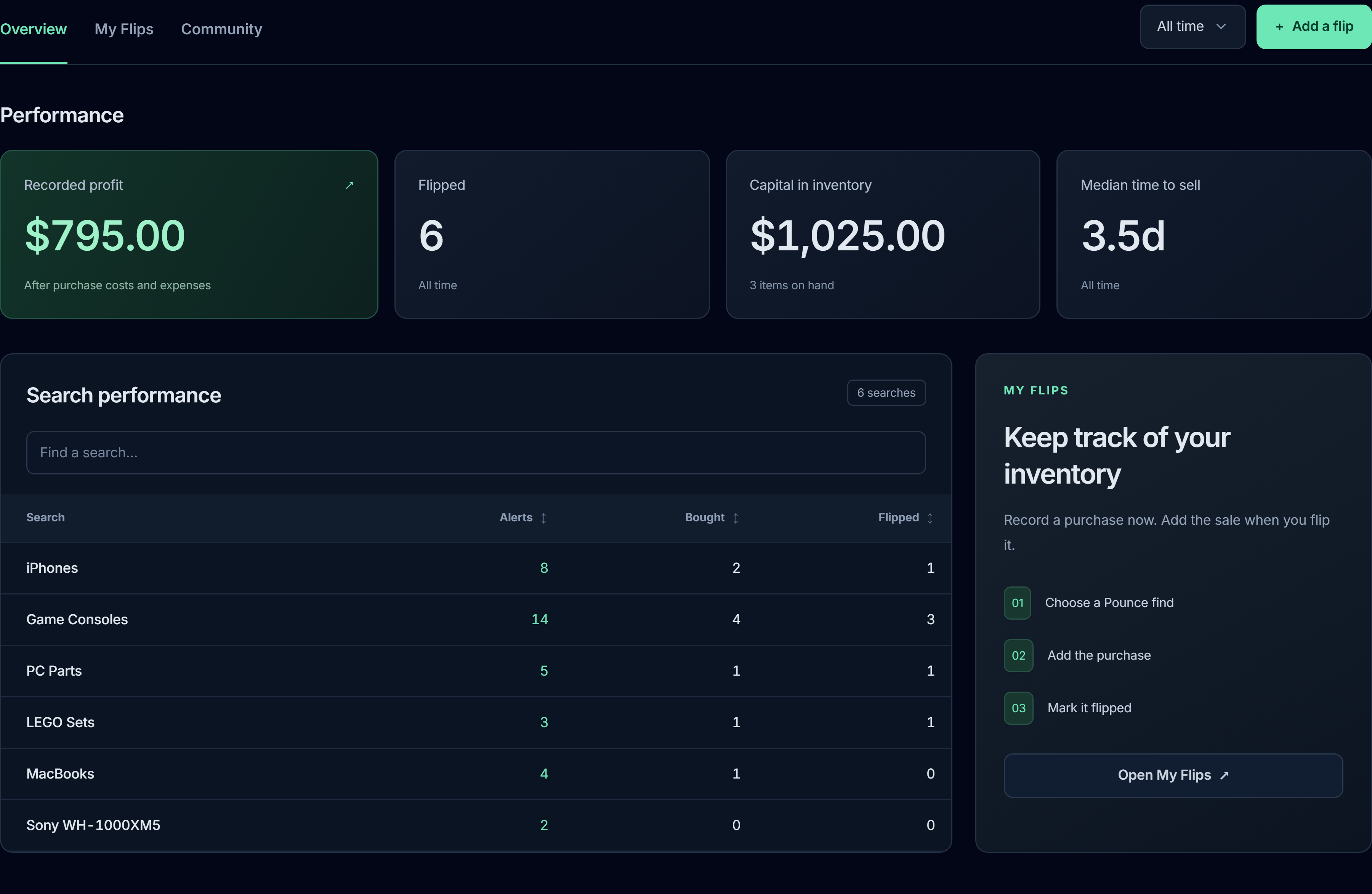
- Recorded profit: profit from sales in the selected month, or all recorded sales in All time.
- Flipped: the number of recorded sales in that period.
- Capital in inventory: purchase costs and any recorded expenses for items still marked Bought. This is current inventory, not a historical month-end balance.
- Median time to sell: the middle holding time for completed flips in the selected period.
Search performance
Alerts follows the selected month, or All time. Bought and Flipped show lifetime tracked counts for each search. Bought includes items that you later flipped, so don’t add those two columns together to count your purchases. Click a column heading to sort it; click again to reverse the order, and again to restore the default.
Deleting a search does not erase its recorded purchases and flips from Insights. Deleted searches with only alert history are hidden from this table.
Find or correct a record
My Flips has a title/search filter, a status filter, and the month picker. A Bought item follows its purchase date; a Flipped item follows its sale date. Choose All time if an older purchase seems to have disappeared from the current month.
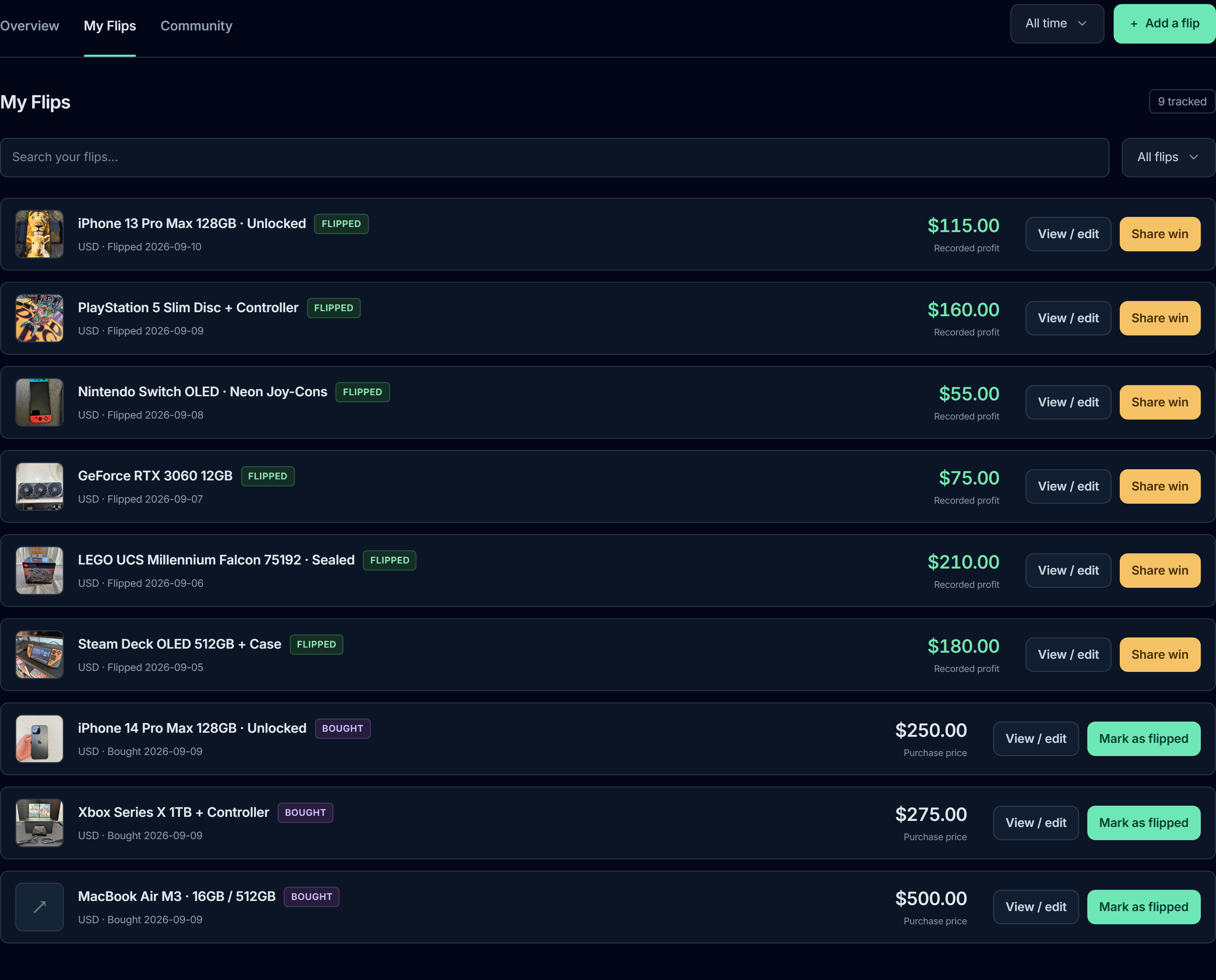
Use View / edit to correct a record. Remove from tracker deletes its recorded purchase, sale, and notes, but leaves the original Pounce find. If the flip is shared, stop sharing it before editing or removing it.
Share a win, if you want to
Community shows shared wins and a leaderboard. Only Pounce finds recorded as completed flips can be shared. Your private tracker is not automatically posted. Self-reported wins are not verified earnings.
- Complete the sale in My Flips and choose Share win.
- Choose a public alias if you haven’t set one. You can change it later in Settings → Community alias.
- Review the card and its purchase and sale dates. The item title, amounts, profit, currency, holding time, alias, dates, and any notes you saved will be public with your win.
- Choose Publish to leaderboard only when you’re happy to make that information public.
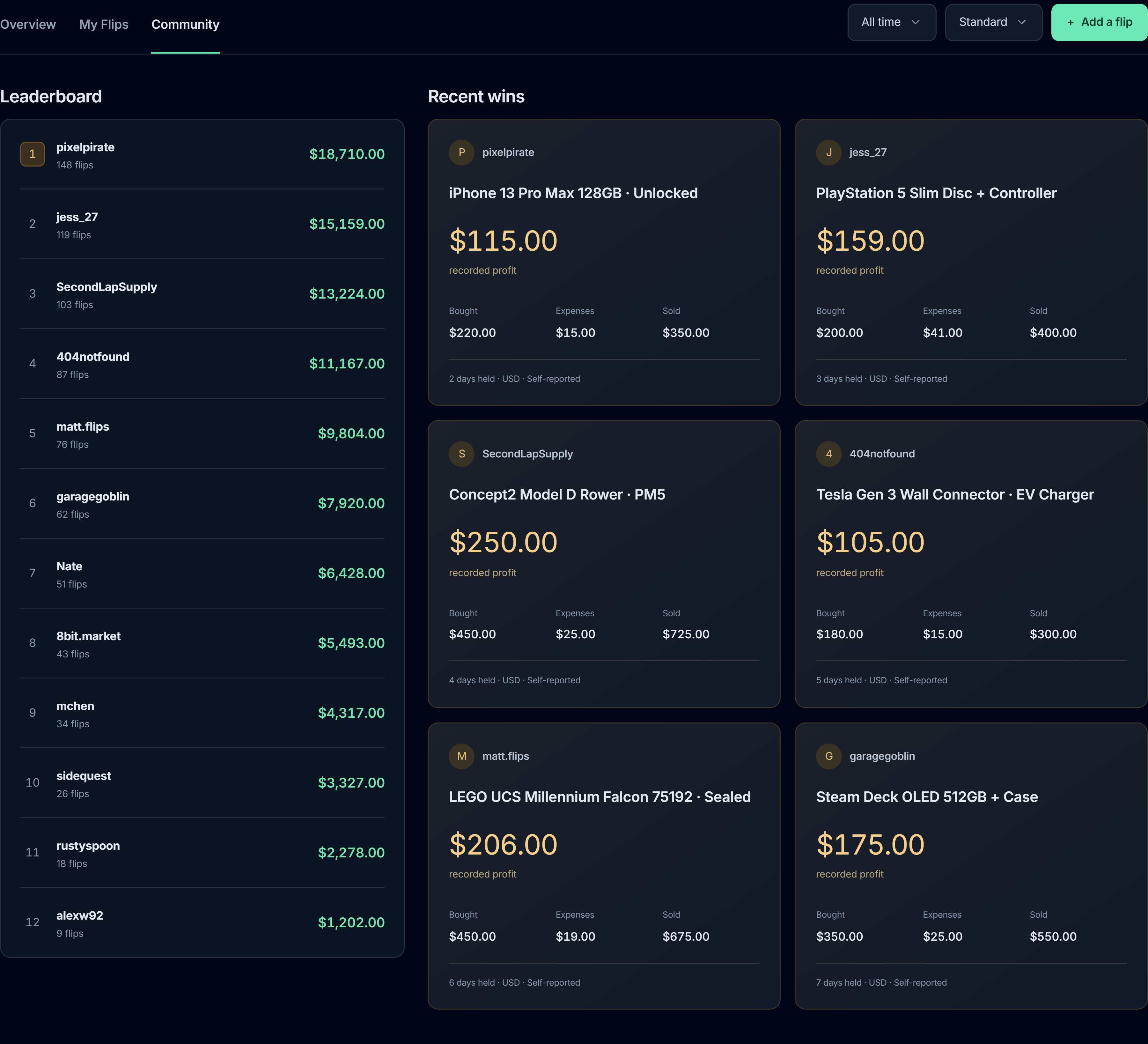
Use the month or All time filter, and switch between Standard and Vehicles to browse the board. Rankings are based on shared results, not every deal a person received or every private flip they recorded.
In My Flips, open View / edit on the shared flip, then choose Stop sharing. This removes the win from public view without deleting your private record. Stop sharing before correcting a published record, then review it again if you want to reshare. Other people may already have seen or saved a public post.
Put alerts where you’ll see them
Settings save automatically. After changing a field, wait for the saved state and check for validation errors. A test message is the quickest way to check that a channel is connected.
Discord
- Create a webhook for the channel where you want deal alerts. In Discord, use the channel’s integration/webhook settings; you need permission to manage webhooks.
- Copy the webhook URL into Pounce’s Discord settings and enable Discord notifications.
- Use Send Test Message and check that channel.
Keep the webhook URL private: it allows posting to that channel. If you use the separate Discord success-sharing option, enter your Discord user ID in its field. Sharing a find to Discord is different from recording a sale and publishing an Insights community win.
Telegram
Create a bot with Telegram’s BotFather, start a chat with your bot, and enter the bot token and destination chat ID in Pounce. For a group, add the bot and use that group’s chat ID. Enable Telegram and send a test. If the test fails, check the token, destination, and whether the bot has been started or added to that chat. Don’t post the token publicly.
Windows and sound
Enable Windows notifications and use the test control. If the test succeeds but you don’t see it, check Windows notification permissions and Do Not Disturb. Sound alerts have their own toggle.
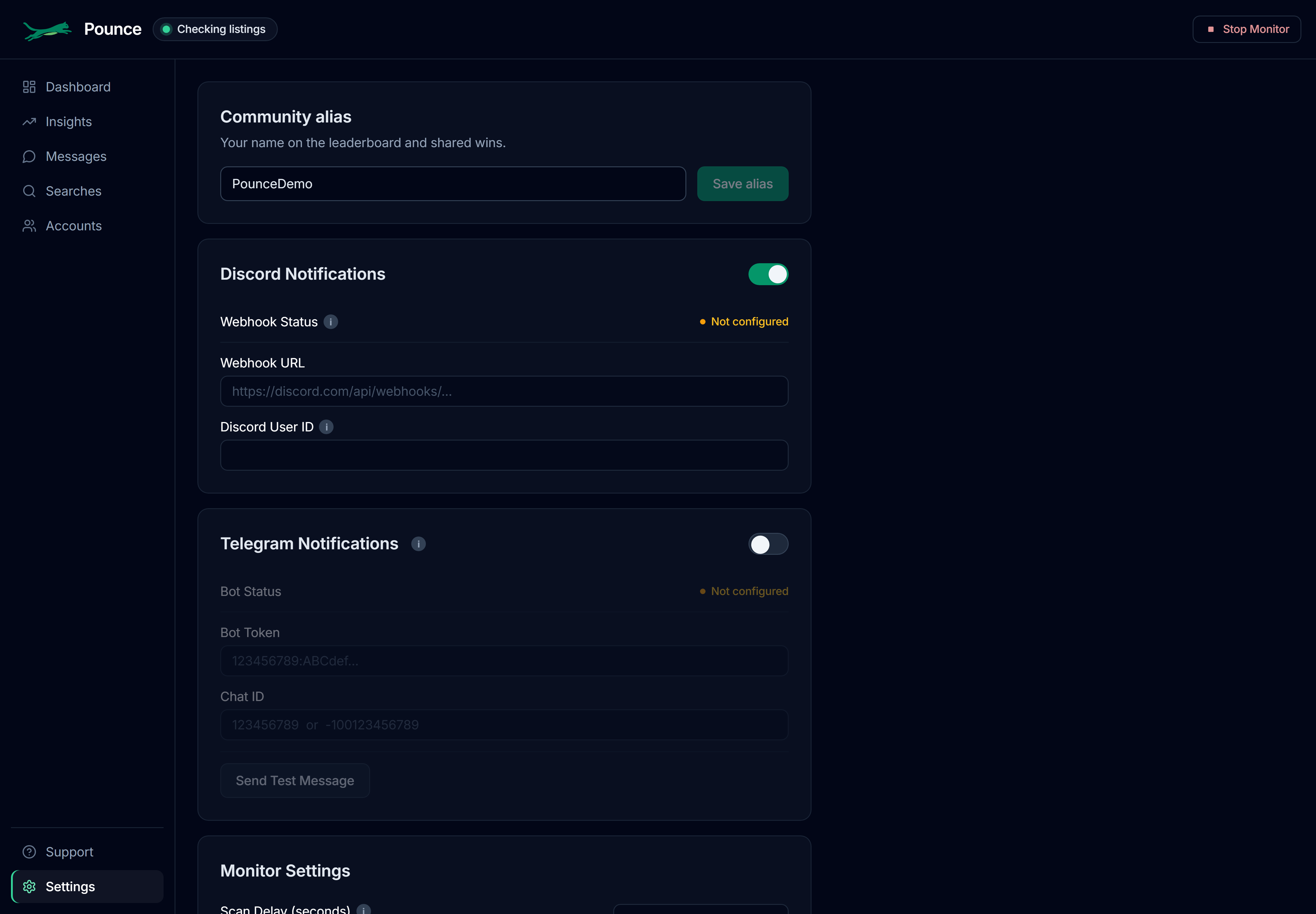
Deal alerts, seller-reply alerts, and lowball-sent alerts have separate controls. Receiving one type does not prove every other type is enabled.
Location and currency
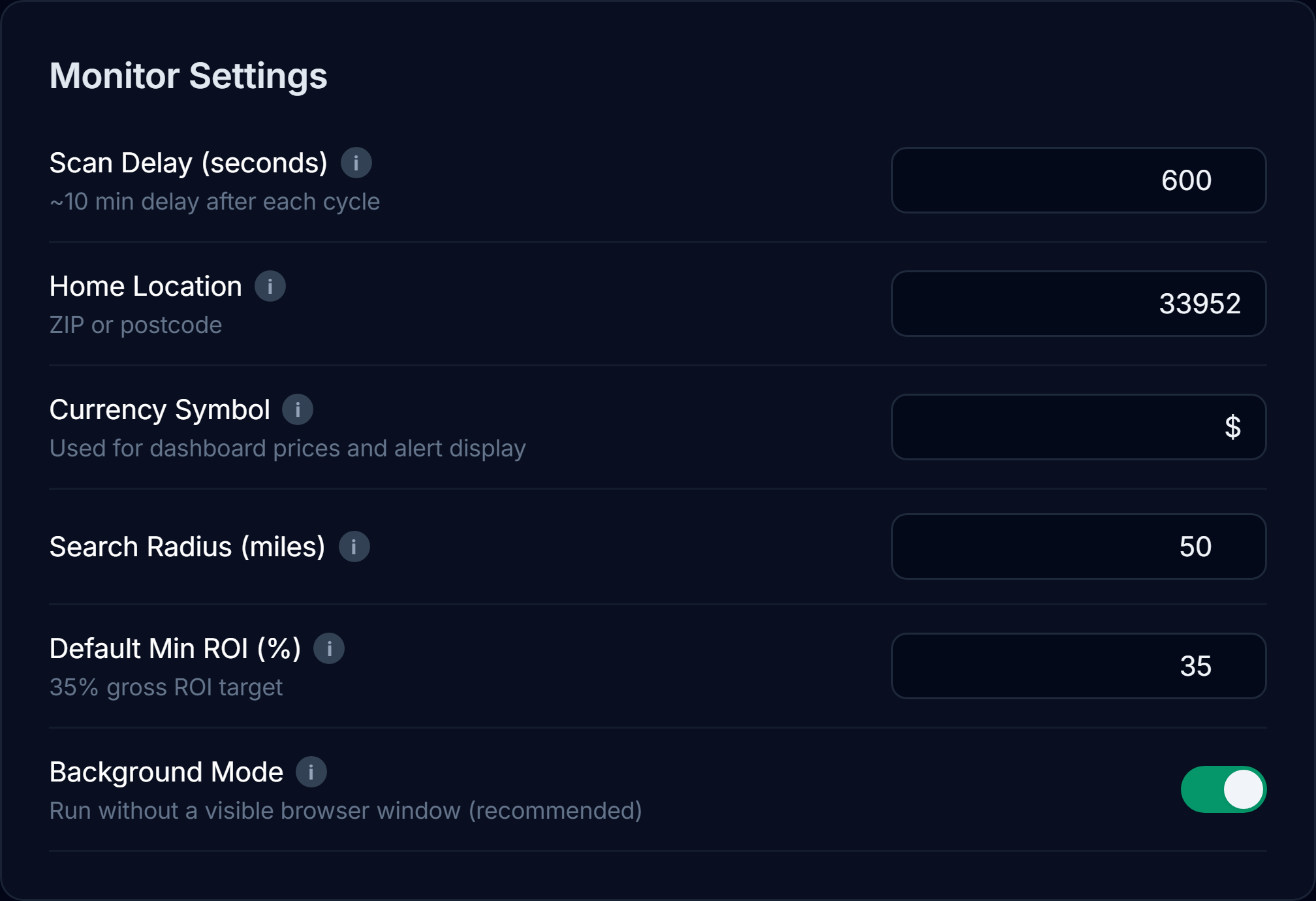
Home Location accepts a US ZIP code or UK postcode. Radius settings are in miles. Match the location in Facebook Marketplace for each account with the area you actually want to search; Pounce also uses your configured location to filter distance.
Use Radius Override for an individual search that deserves a longer drive. Use Auto-message radius to keep automatic outreach closer to home without narrowing every alert.
Currency Symbol changes how prices are displayed. It does not convert the underlying amounts or prove that a pricing source reflects your local resale market. Check the currency and market behind a value before using it as a buying target. Insights separates records by currency rather than adding unlike currencies together.
Connect and manage Facebook accounts
- Open Accounts and add an account with a name you’ll recognize.
- Add proxy details only if you intend to use one. Leave them blank for a direct connection.
- Use the account’s login control. Sign in in the browser Pounce launches and finish any verification.
- Check that Pounce has a saved session. Open Marketplace for that account and set its location.
- Assign searches to the account. An account with no enabled searches has nothing to scan.
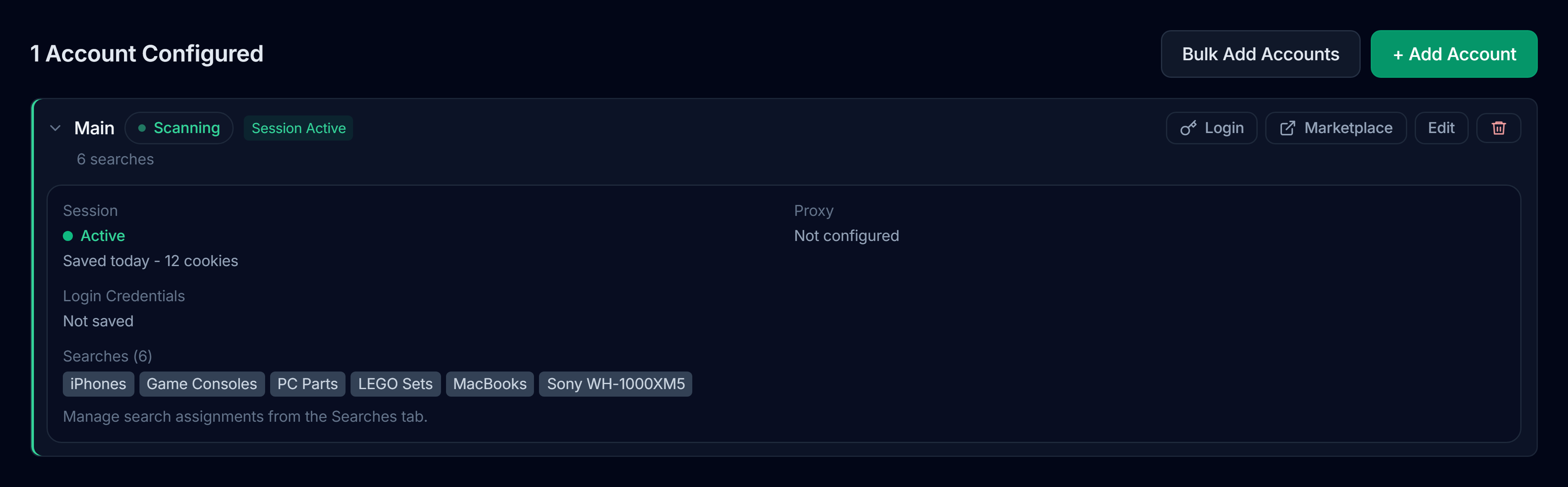
Advanced account setup can include saved login details or imported cookies. These are sensitive. Use only sessions you control, never share them in Discord, and don’t use account imports to bypass a Facebook checkpoint.
Proxies and multiple accounts
A proxy belongs to an individual account. Enter its server and any required username and password in that account’s settings. An invalid or unreliable proxy can prevent login, Marketplace access, or scans.
Multiple accounts can run their assigned searches independently. They do not make an overloaded account safe, guarantee a particular alert speed, or remove Facebook’s restrictions. Start with a small setup you can verify before adding more accounts. Bulk account tools still require valid sessions, deliberate search assignments, and enough plan capacity.
Changing a working account’s proxy changes where Facebook sees it connecting from. Keep your setup consistent and resolve account warnings before turning activity back up.
Quiet Hours, scan delay, and messaging hours
Quiet Hours are required: at least eight hours every day. Pounce pauses scanning during that window. The window may shift by up to 30 minutes earlier or later each day while keeping the duration you selected. An invalid quiet period prevents the monitor from starting.
Scan Delay is the wait after an account finishes a full cycle, not a guaranteed interval between checks of each search. The actual wait varies by roughly 25%; scan time, search count, account state, and Marketplace itself add time too. Lower is not always better.
Messaging Hours is a separate schedule for new openers. It does not shut off deal alerts, and it does not replace Quiet Hours. Set both schedules for the hours you want Pounce operating and contacting people.
Background Mode keeps the scanning browser hidden. Leave it on for normal use. Turning it off is a local troubleshooting option, not a requirement for monitoring.
Read the Dashboard and search history
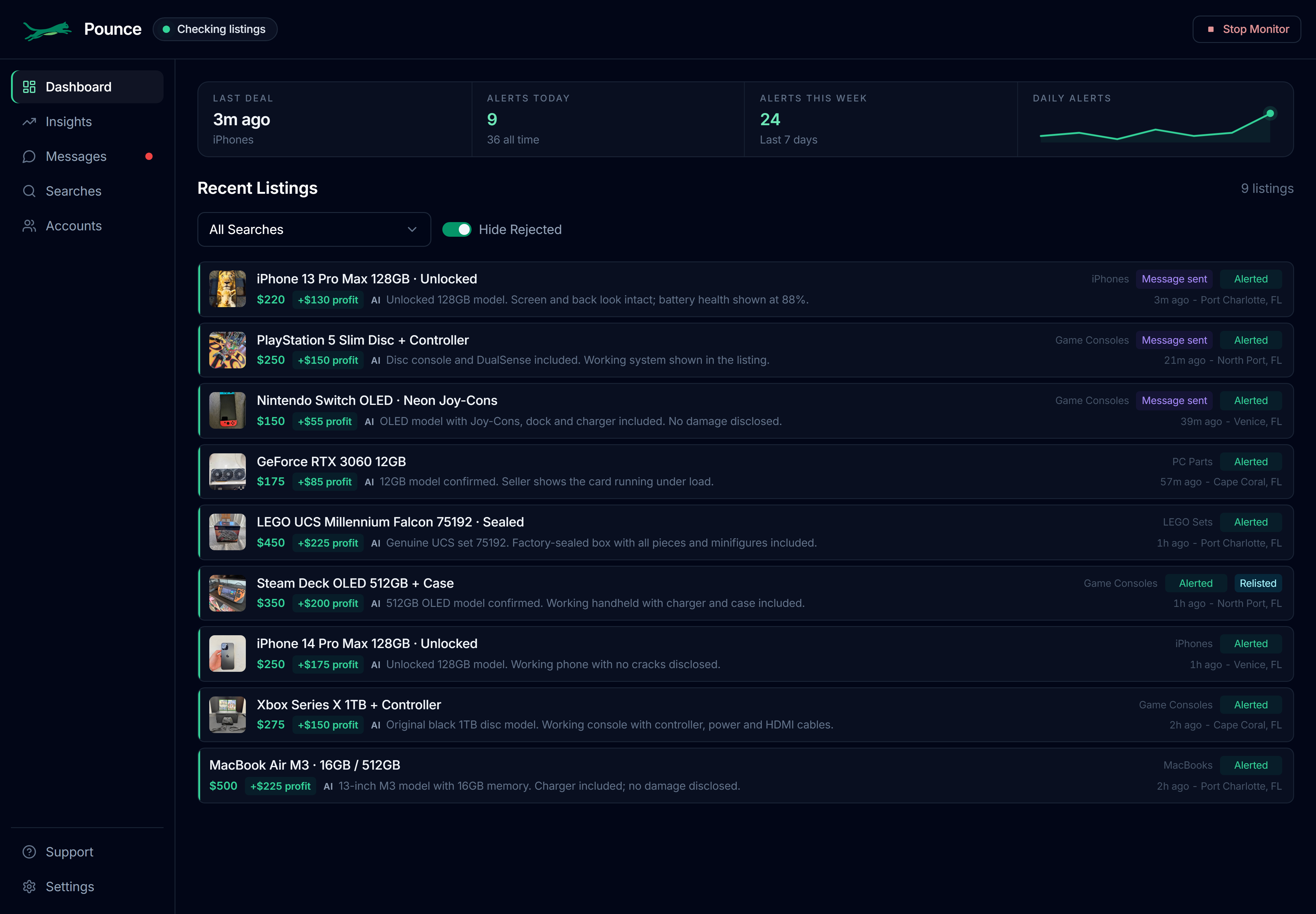
The Dashboard shows Last deal, Alerts today, Alerts this week, and the daily alert chart. These describe alert activity. They do not tell you how many items you bought or how much you earned.
Recent Listings shows the asking price, a short verification explanation, and profit context when a usable value exists. Use the search filter to narrow the feed. Hide Rejected changes what you see in the feed; it does not change the search’s rules.
Hover a listing to reveal available actions such as relisting or sharing. Click the title to open the original Marketplace listing. A red Messages indicator means there is an unread seller reply to check.
When nearby results are mostly listings it has already seen, Pounce can look a little further down the results for fresh finds. This is automatic and stays within scan limits; it does not mean every search scans all of Marketplace.
Search History
In Searches, choose History on a row. Recent scans show which account ran it, listings collected, how many were in range and new, how many passed the early filter or reached AI review, alerts, errors, and elapsed time.
Use this to narrow down a problem. No collected listings points toward the query, account, or Marketplace. Lots of collected listings but few in range points toward location. Listings can also be already seen, outside your price rules, filtered by keywords, deferred, or rejected after review. An error count of zero does not mean every listing was a match.
Your data and privacy
Your Facebook login stays on your computer. Facebook session cookies, saved Facebook passwords, and proxy credentials are used locally to connect to Facebook and your proxy. They are not uploaded to Pounce Cloud for scanning or AI review. You do not need to give support your Facebook password, session files, or proxy login.
Settings, listing history, messages, and unshared flip records are also stored locally. Cloud features use relevant listing details and photos, search rules, and conversation context for enabled messaging. Licensing sends license and device information; product usage events help us understand how Pounce is working. Local credentials are separate from that feature data.
Community sharing publishes the information in its review step, including any notes you saved with that flip. Support bundles exclude session and credential files and redact known secrets, but can still contain listing and activity details. Share them privately.
For a backup or move, stop Pounce before copying its app-data folder and keep that backup private. A support bundle is not a full backup. See the Privacy Policy and Terms for the full policies.
No listings or no alerts?
- Check whether scanning is running. Quiet Hours, a stopped monitor, an expired session, or a sleeping PC can explain the silence.
- Check the account assignment. The search and account need to be enabled and the search must be assigned. Check the plan counter and any Pro lock.
- Open the search’s History. Has a cycle completed? Did it collect listings? Were they inside your radius?
- Check the query in Facebook. Use that account’s Marketplace browser and location. A search with little local supply won’t become busy just because Pounce checks it.
- Review the filters. Required Keywords, global exclusions, buy range, ROI, minimum profit, condition, and bundle settings can all narrow the result.
- Check pricing and notifications. Auto needs pricing. An approved listing in the feed but no notification may be a channel problem; send a test.
Change one thing at a time. Keep an exact listing link and the search name when reporting a missed deal; that is much more useful than “the count looks low.”
A Facebook session expired
Open Accounts, find the affected account, and log in again through Pounce’s browser. Finish the login fully and verify that Marketplace opens. Then check the session status before restarting scanning.
Don’t delete every account or clear all app data to fix one expired session. If login appears successful but scanning still fails, include the account name and approximate time in your support report.
Facebook asks for verification
If Facebook shows a CAPTCHA, checkpoint, or restriction, stop activity for the affected account and complete the request yourself in its browser. Repeated restarts are not a fix for an unresolved checkpoint.
Check that Marketplace is available again before resuming. Use a reasonable search load and schedule. No combination of pacing, proxies, or account settings guarantees that Facebook will not restrict an account.
Get help with a useful report
Support has connection and license status, a link to Discord support, Save Support Bundle, and a bug-report form. A good report names the search or listing, says what you expected, explains what happened, and includes the approximate time.
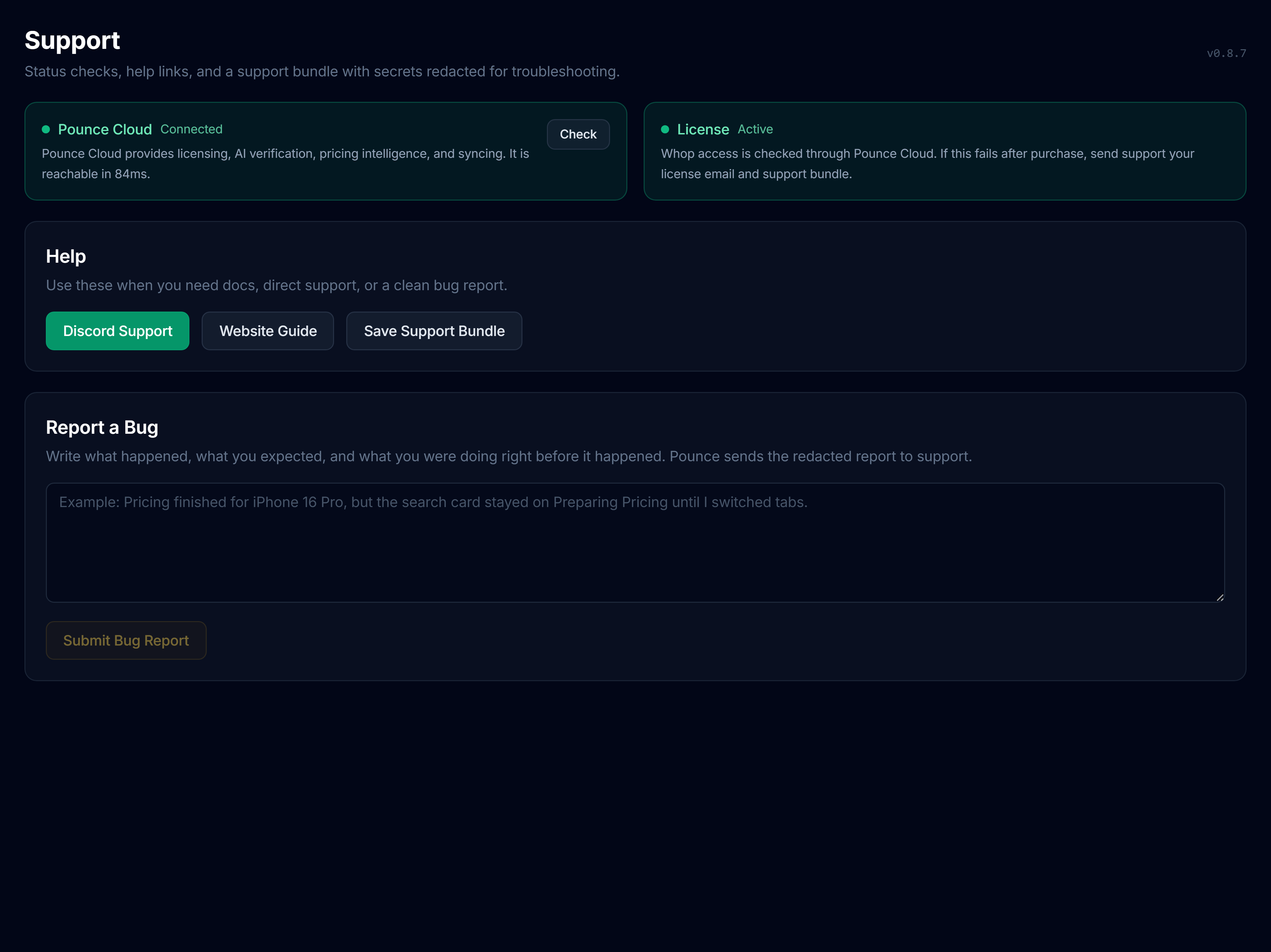
Saving a support bundle collects troubleshooting information and redacts known secrets. Wait for the app to confirm where it was saved. Share it privately with support, not in a public channel; diagnostic files can still contain listing and activity details.
For a negotiation issue, include the listing and which reply was wrong. For a pricing issue, include the model, asking price, and the value you expected. Don’t erase history before reporting it.
Common questions
Does Pounce buy items automatically?
No. It can find listings, send an opener, and negotiate within its limits. You handle the seller’s questions, payment, pickup, and the decision to buy.
Why did a deal alert without an automatic message?
Check whether messaging is enabled on that search, whether the listing is within the messaging radius and hours, and whether the account has reached its daily opener limit or needs attention. An alert and a confirmed sent message are separate outcomes.
Is the profit in a deal alert money I’ve made?
No. It is an estimate based on the value available for that listing and the applicable pricing options. Insights recorded profit uses the purchase, sale, and expenses you enter after a real transaction.
Does recorded profit include every fee and cost?
Only the expenses you enter. Add your selling fees, postage, repairs, transport, and other relevant costs to the total. Pounce does not automatically reconcile your bank account or marketplace payouts.
Can I add any sale to the community leaderboard?
No. The tracker starts with Pounce finds, and only a completed recorded flip can be shared. Results are self-reported, not receipt-verified. You choose which wins to publish.
Will my unshared flips appear publicly?
No. Share win opens a review step showing the notes and other details that will be public. Publish to leaderboard is a separate action. Stop sharing removes the public win while keeping your own record.
Can I relist while the monitor is running?
No. Stop the monitor, finish the relist, and restart scanning afterward. If publication is uncertain, check Your listings on Facebook before trying again.
Does a UK postcode or a currency symbol guarantee local pricing?
No. Location support, display currency, and pricing-market coverage are separate. Check the source and currency of the value and use Manual when you want to apply your own known local buy range.
Will it find every deal or keep my account completely safe?
No. Listings can be missed, sold, removed, or changed between scans. AI and pricing can be wrong, and Facebook can restrict automation or change Marketplace. Pounce helps you find and work opportunities; it does not guarantee access, purchases, or profit.